Content:
Connect the systems and import bookings
Add your placeholders / merge tags
1. Connect the systems and import bookings
In Hostaway
First, retrieve your Hostaway ID and API key.
-
Log in to your Hostaway account
-
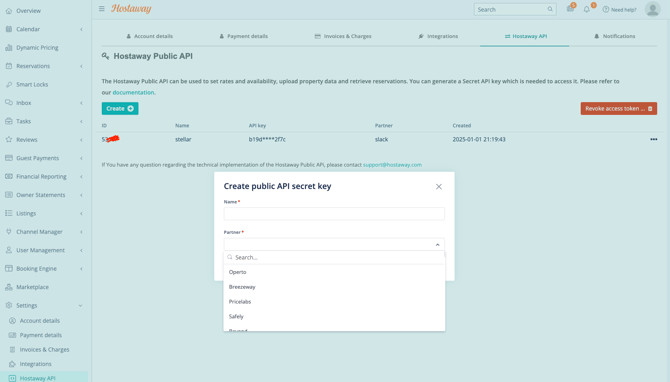
Go to Settings > Hostaway API
-
In the Hostaway Public API section
-
Click Create
-
Enter a name for the connection
-
Select Stellar Trust as the partner
-
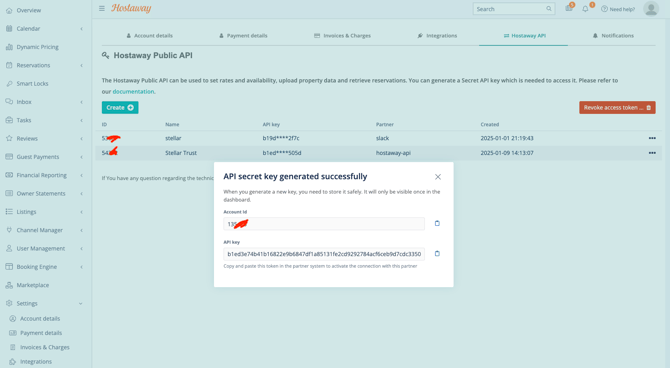
Here you will see your API key and your account ID. They will only show once, so make sure to copy and save both of them. For more details, refer to the Hostaway help article.
Within Stellar Trust
-
Go to your Properties section and click Connect PMS.
-
Select Hostaway and click Import bookings.
-
Enter your Hostaway ID in the ID field and paste the API key into Secret, then click Save.
-
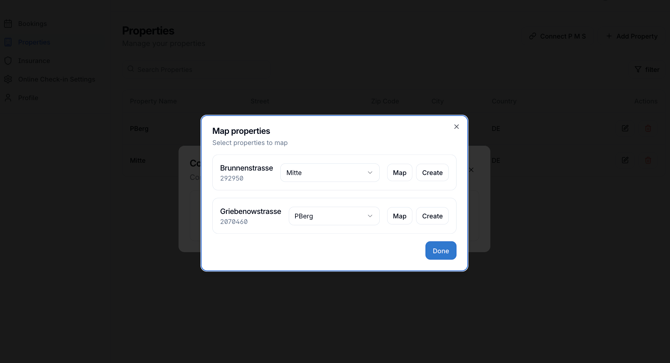
Return to Properties > Connect PMS, match your Stellar Trust accommodations with your Hostaway properties (or create them if needed), and click Save to finish the setup.
2. Add your placeholders / merge tags
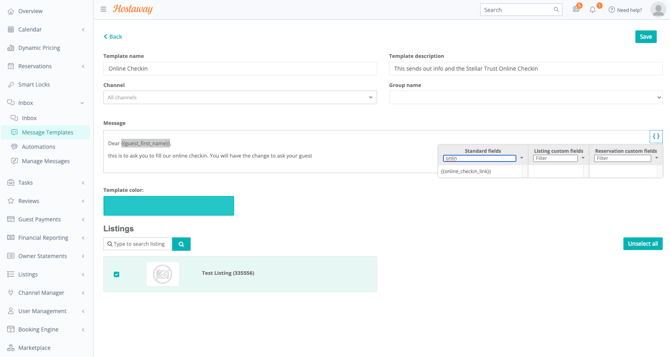
To integrate the Stellar Trust online check in link to your guest messages.
-
Go to your Hostaway Dashboard and open Inbox > Message templates and create a new template or edit an existing one
- Use the custom tag
 , and place it where you want the Stellar online check in link to appear.
 -
To set up reminders or emails after a successful check in, use the Yes/No field "checkinFinished" as a condition in your Hostaway message templates.