Content:
1. Connect accounts and import bookings
2. Integrate placeholders / merge tags into your messaging to send Stellar Trust Online Checkin links via Smoobu messaging system
1. Connect your accounts
Make sure that you are logged into your Smoobu account and Stellar Trust account at the same time. Best in 2 different tabs tab.
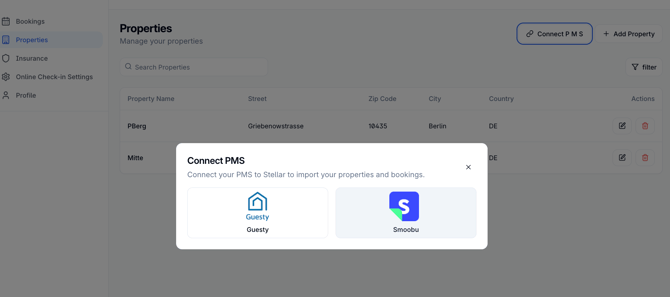
- In your Stellar Trust account simply go to Properties > Connect PMS.
- Select Smoobu from the Selection
- You are now being redirect to Smoobu to confirm the connection. Click on confirm
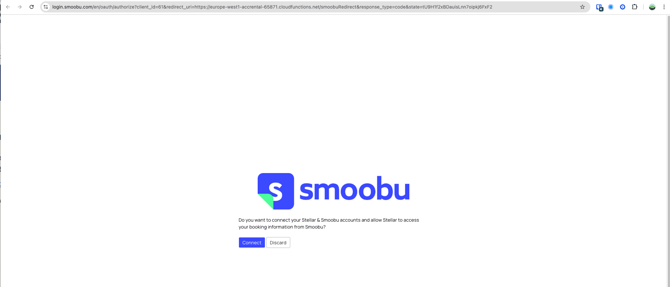
- The two systems are now connected. Now go back to your Stellar Trust account to your properties section and click on "Connect PMS" one more time
- Now click on "Import". You will now be prompted to match your Stellar Trust and your Smoobu accommodations. If you have not yet created your accommodations you may also select "Create" to add those properties to your Stellar account.
Please use the dropdown and click on save on each unit. Once you have done so please click on "Done". Your future bookings will now be imported into the system. Please note that we do not have access to your past bookings.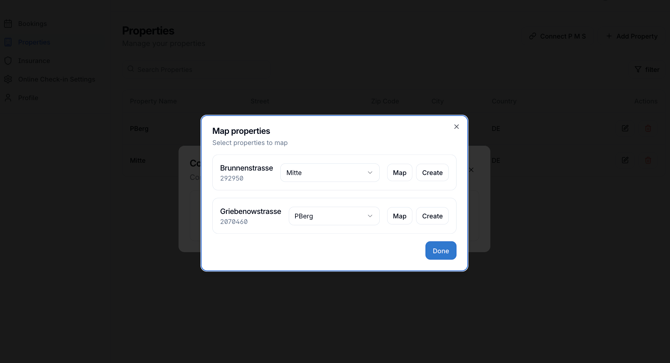
Great job, you are now fully connected. Future bookings, updates, cancellations etc. will automatically be pushed.
2. Integrate placeholders / merge tags into your messaging to send Stellar Trust Online Checkin links via Smoobu messaging system
Option a) Use message templates to fully automate messages
- Within your Smoobu account go to "Guest Experience" > "Communication"
- Create a new template or alternatively open an existing one that you would like to add your Stellar Online Checkin including your choices of insurance / deposit to.
- The placeholders:
[Stellar check-in link]
[Check-in Status]
[Booking details]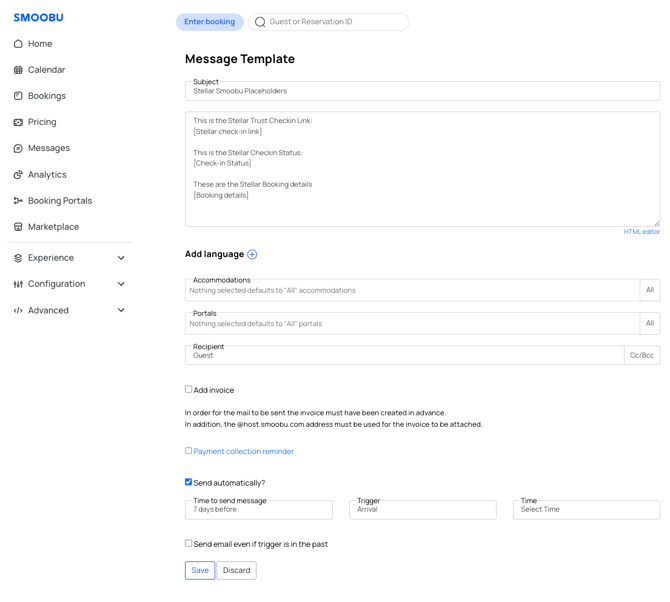
You are now good to go. The rest works like you know from within the Smoobu messaging system
Option b) Manually add online checkin link into your messages.
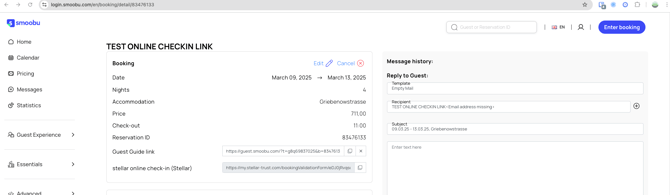
- Go to the booking inside of Smoobu that you would like to use the online checkin link for
- Copy the "stellar online check-in (Stellar)" from there and add it into your messages from Smoobu manually